Import Data From Delimited Text Files
This tutorial describes how to import data from a generic delimited text file. The text file may contain header and footer information; valid delimiters for the data values include commas, blanks, tabs and quotes. The procedure for importing a delimited text file is summarized as follows:
- Create a text (.txt) file with data values delimited by commas, blanks, tabs or quotes. Supply a numeric value for each data item.
- Use the Pumping Test Wizard or Slug Test Wizard in AQTESOLV to enter data for your aquifer test. When prompted for observation (time-displacement) data, launch the Import Wizard to import the text file containing the data logger measurements.
Create a Delimited Text File Using a Text Editor
Creating a delimited text file is possible with many Windows text-editing applications such as Notepad, WordPad or Microsoft Word.
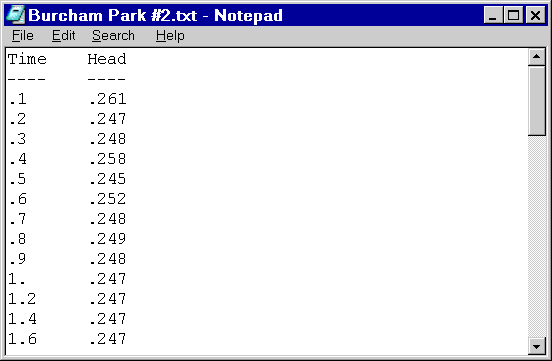
- Enter one reading (i.e., time and drawdown) per line of text with data values separated by tab or comma delimiters. The Import Wizard ignores header and footer text in the file.
- Choose File>Save As to save the file. Select an option from the Save as type box to save the file in a text-only (.txt) format.
Create a Delimited Text File Using a Spreadsheet
You also can create delimited text files using a spreadsheet application such as Microsoft Excel.
- Open an existing spreadsheet containing time and drawdown readings or enter the readings in adjacent columns of a new spreadsheet.
- Choose File>Save As to create the text file. Select Text (Tab delimited) or CSV (Comma delimited) from the Save as type box before saving the file.
Import Delimited Text File into AQTESOLV
Once you have a delimited text (.txt) file containing the test readings, you are ready to import the data from the file into AQTESOLV.
Start the AQTESOLV application (v3 or higher) and follow the steps below.
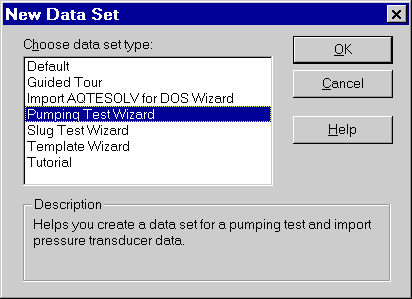
- Choose File>New and select Pumping Test Wizard or Slug Test Wizard from the list to create a new data set for a pumping test or slug test. Click OK to proceed.
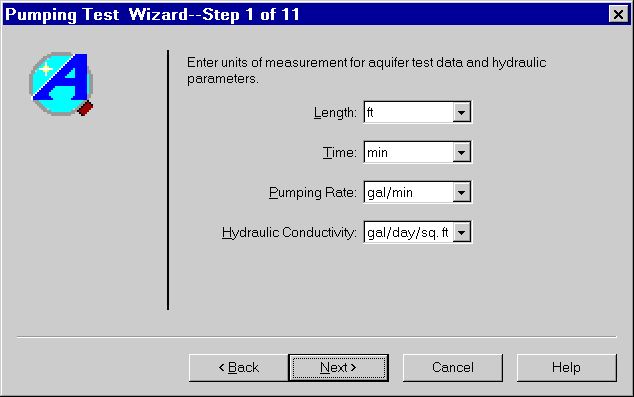
- Begin the wizard by entering units of measurement as shown and click Next.
- Continue entering data in the wizard until you reach the last step which prompts you for the observation (time-displacement) data for the test. Click Import to launch the Import Wizard for importing the observation data from a file.
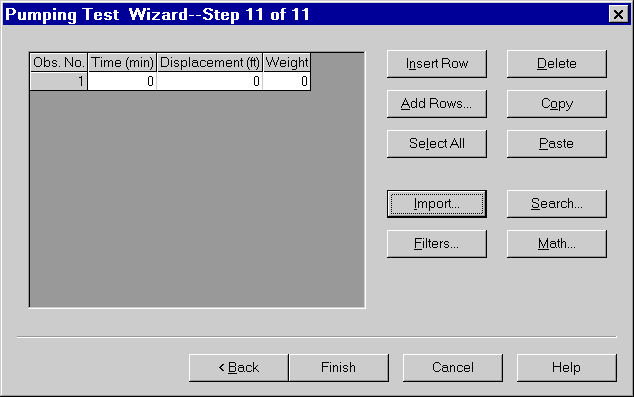
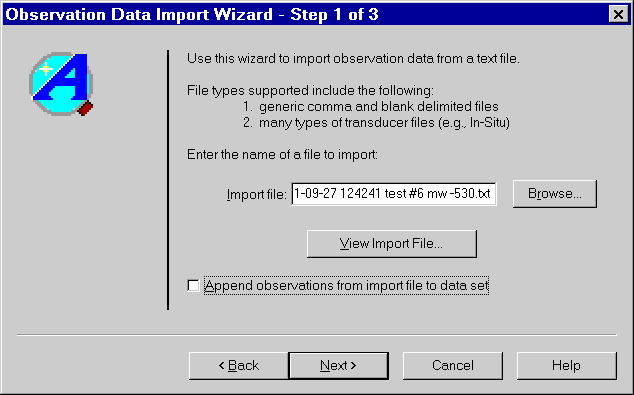
- The Import Wizard consists of three simple steps that help you to import data from a file. The import file must have text formatting (not binary) and data values separated by blanks, tabs, commas or quotes. In the first step of the wizard, enter the name of an Import File. Click Next to continue.
TIPS
Click Browse to locate and select a file to import. After selecting the file, click View Import File to view its contents.
Be default, the imported data overwrite any readings contained in the AQTESOLV data set. Override this behavior by selecting the option to Append observations from import file to data set.
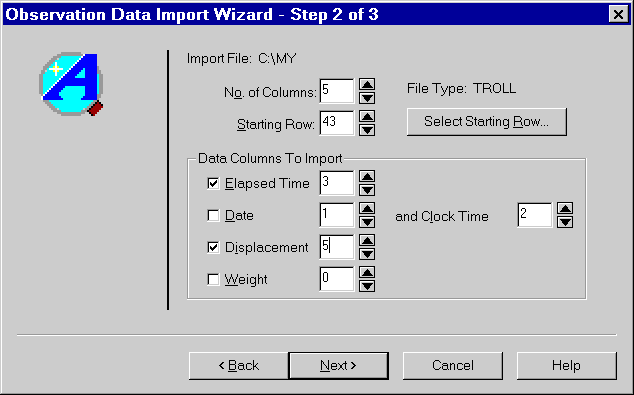
- In the second step of the Import Wizard, identify the structure of the import file. Enter the number of data columns and starting row in the file, and the data columns to import. Click Next to continue.
TIPS
AQTESOLV automatically scans the import file to identify the No. of Columns and Starting Row for data contained in the file. Click Select Starting Row to modify the number of columns and starting row.
Enter Data Columns To Import that match the structure of your import file. Typically, you will select elapsed time and displacement values to import. The Import Wizard also allows you to import time recorded as date and clock time values when an elapsed time column is not available. For example, if your data logger file contains a total of five data columns with elapsed time in column 3 and water-level displacement in column 5, enter the values shown below.
The Weight column is optional; if your file does not contain weights for the readings, AQTESOLV assigns a default value of 1.0 for each reading.
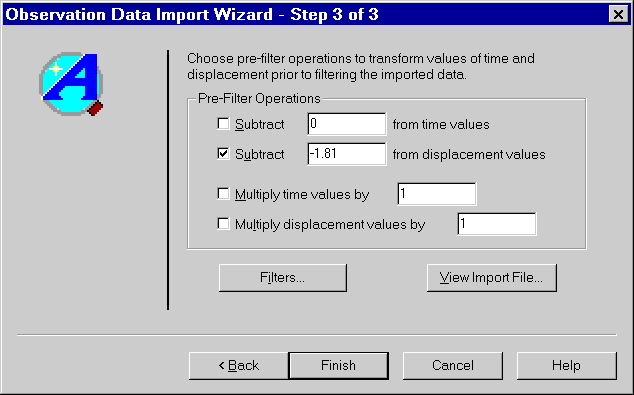
- In the third step of the Import Wizard, select transformation and filter options to modify the data contained in the import file. Click Finish after selecting these options to import the file.
TIPS
The Pre-Filter Operations allow you to perform common transformations on the data. For example, to convert water levels or depths contained in the import file to displacement (drawdown) values, subtract the static water level or depth from all of the readings in the file. You can perform this transformation by selecting the option in Time Filters group to subtract a constant from the displacement values and entering the static water level or depth (see example below). Other useful options allow you to multiply time and displacement values by a constant. For example, to convert negative displacements to positive values, check the option for multiplying displacement values and enter a constant of -1.
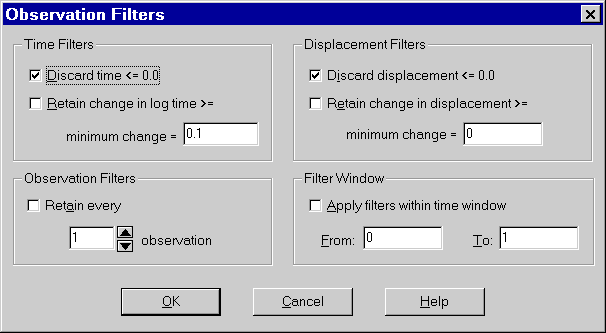
Click Filters to choose options for filtering data imported from the file. Select Retain change in log time >= minimum to retain a fixed number of readings per log cycle time. For example, to retain 10 readings per log cycle, enter a value of 0.1 (=1/10) for this option. Other options allow you to specify a retention interval (e.g., retain every fifth observation), a minimum change in displacement for retaining observations (i.e., discard readings until the change in displacement exceeds the minimum value), and a time window for applying the filters. You can select more than one filter option for your import file.
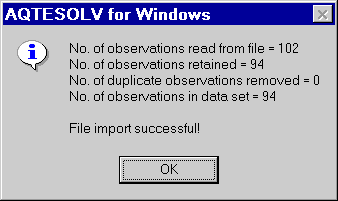
- After importing the file, AQTESOLV shows a summary of the data read from the file. Click OK to continue.