Copying and Pasting Data
This tutorial describes how to copy and paste data from a spreadsheet (e.g, Microsoft Excel) or text editor (e.g., Notepad, WordPad or Microsoft Word) into AQTESOLVs. The procedure for copying and pasting data is as follows:
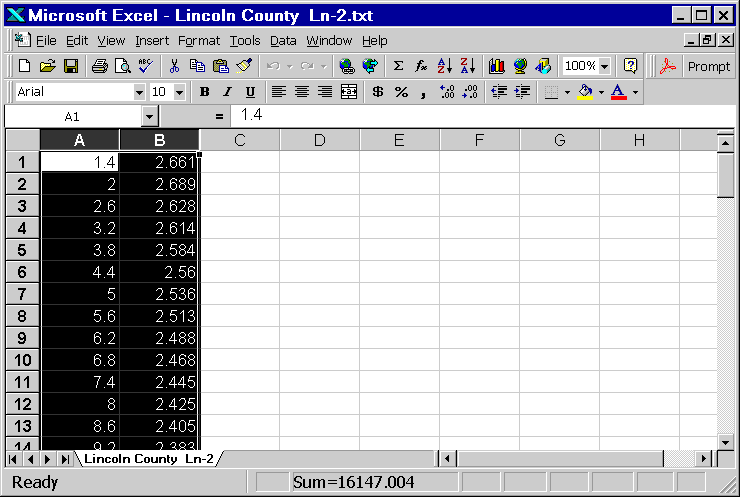
- Start your spreadsheet or text editor application. Choose File | Open to open a file containing test readings (e.g., time-drawdown data). Select the data in the spreadsheet or text editor and choose Edit | Copy to copy the data to the Windows clipboard.
TIPS
Select and copy only numeric data (no text).
If necessary, arrange the readings in a spreadsheet in adjacent columns by copying them to a temporary location. Excel will copy intermediate columns to clipboard if the selected columns are not adjacent.
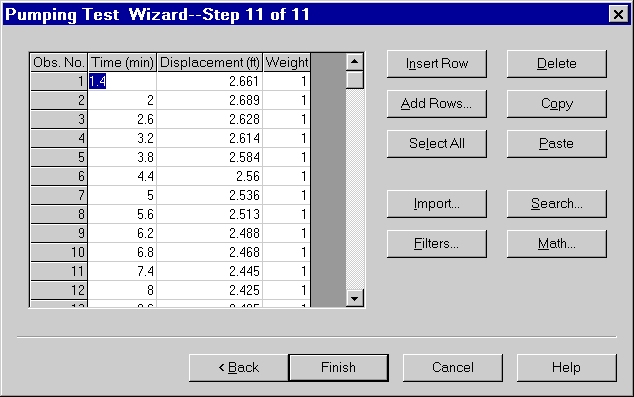
- Start the AQTESOLV application. Choose File | New and select either the Pumping Test Wizard or Slug Test Wizard to enter data for your aquifer test. Follow the steps in the wizard. When prompted for observation (time-displacement) data, click Paste to paste the data from the clipboard into AQTESOLV.